No changes recorded yet. We compare every crawl with the previous one and list title, icon, screenshots, description, version, price and availability changes here.
Country availability
Availability has not been checked for this app yet. “Check all countries” looks the app up in about 140 Google Play storefronts and shows where it is live, listed but not installable, or missing — plus any country-specific (custom) store listings.
Top countries
🌍
Country data will be available soon.
We estimate where downloads come from using the app’s position in Google Play’s top charts in about 140 countries. This app is not in any chart we have collected yet; the estimate appears as soon as it is.
Top chart positions
Not in any tracked top chart.
App manifest
Read this app's manifest from Google Play: permissions, declared SDKs, components and AdMob app ID. Saved analysis appears here automatically.
Data safety
declared by the developer on Google Play
✓No data shared with third parties
✓No data collected
✓Follows the Play Families Policy
This is the developer's own declaration, summarised from the Play listing. The permissions below show what the app is technically able to access.
Permissions
4 in 1 group
0 Sensitive1 Notable3 Routine
OtherNotable4
Access to miscellaneous device features that don't fit other categories
Keep your phone's processor or screen from going to sleep, which can use more batteryprevent device from sleeping · WAKE_LOCK
Check whether you are online and whether you use Wi-Fi or mobile dataview network connections · ACCESS_NETWORK_STATE
Connect to the internet to load content and send datafull network access · INTERNET
Read Google service settings stored on your deviceread Google service configuration · com.google.android.providers.gsf.permission.READ_GSERVICES
Sensitive = can reach personal data, location, camera/mic or act on your behalf. Notable = changes how your device behaves. Routine = normal for almost every app. Source: Google Play's permission list for all versions of this app.
Created to enable players to use their preferred controls on Android, the game is designed to be played with one of the following input methods: touch, a mouse cursor, a game controller or a keyboard. The app opens in landscape mode only.
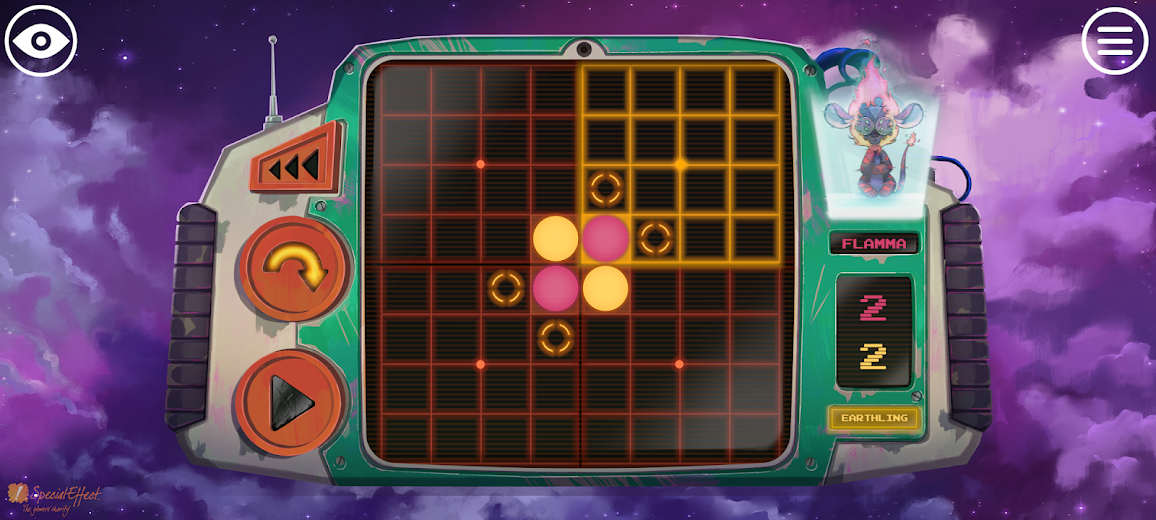
The objective is to change the majority of the pieces on the board to your colour by the end of the game. You switch your opponent’s pieces to your own colour by placing your pieces either side of one or more of theirs.
SUPPORTED INPUT METHODS:
TOUCH - A single tap on the onscreen buttons activates them. No swiping or holds are required. You can choose between ‘Classic’ or ‘Precise’ controls using the button in the top left. Using the ‘Precise’ controls option, you can directly select the square on the board that you want to place a piece in.
If using the ‘Classic’ controls option, you get larger targets that are spaced further apart. You first select the top of the two circular buttons on the left to select the quadrant of the board, that the square you want to place your piece is in. Then use the bottom circular button to select it. You then use the same onscreen buttons to scan through and select the square itself within the quadrant.
MOUSE CURSOR - Using a single left click on the onscreen targets activates them. No drags or holds are required. The Auto-Click option on Android is also compatible with the game. When on this Android setting allows you to hover your mouse cursor over an onscreen target for a set period of time to click automatically. As with touch, you can choose to use either ‘Classic’ or ‘Precise’ controls using the button in the top left. Using the ‘Precise’ controls option, you can directly click on the square on the board that you want to place a piece in.
If using the ‘Classic’ controls option, you get larger targets that are spaced further apart. You first select the top of the two circular buttons on the left to select the quadrant of the board, that the square you want to place your piece is in. Then use the bottom circular button to select it. You then use the same onscreen buttons to scan through and select the square itself within the quadrant.
With your switch or switches, you first scan to and then select the top of the two circular buttons on the left to select the quadrant of the board that the square you want to place your piece is in. Then use the bottom circular button to select it. You then use the same buttons to scan through and select the square itself within the quadrant.
KEYBOARD - The Arrow keys navigate and highlight the onscreen targets and the Enter key is used to select one, when highlighted.
To place your piece, navigate to and then select the top of the two circular buttons on the left of the board to select the quadrant of the board that the square you want to place your piece is in. Then use the bottom circular button to select it. You then use the same buttons to scan through and select the square itself within the quadrant.
GAME CONTROLLER - The Left Stick, Right Stick or D-Pad is used to navigate the onscreen targets. Any of the face buttons or triggers on your Android compatible controller can be used to select an onscreen target, when highlighted.
To place your piece, navigate to and then select the top of the two circular buttons on the left of the board to select the quadrant of the board that the square you want to place your piece is in. Then use the bottom circular button to select it. You then use the same buttons to scan through and select the square itself within the quadrant.
SpecialEffect is a registered UK charity (1121004) that helps physically disabled players to access video games. Please visit https://www.specialeffect.org.uk/ for more information.




تخته نرد آنلاینShabrang Mobile L.L.C-FZ · Board—/day · 790.3K total
Finding AtlantisHYBR Games · Board—/day · 2.8K total
Parti Shot Oyunu - SpinRushTolga Mutlu · Board—/day · 93 total
DicogiteLudicsCorner · Board—/day · 0 total
Crown DashSSGM LLC · Board—/day · 0 total
Five Elements ChessBeijing Jiao Dian Chuang Yi digital technology · Board—/day · 587 total
Snakes & Ladders Kingmobirix · Board—/day · 58.1M total
Egaliconegalicon.com · Board—/day · 258 total